Mobile gaming has become more popular than ever. Whether you play BGMI, Free Fire MAX, Call of Duty Mobile, Asphalt, or other games, smooth performance is essential for an enjoyable experience. Many Android users experience lag, frame drops, overheating, and battery drain while gaming.
The good news is that you can significantly improve gaming performance by adjusting a few Android settings. In this guide, we will discuss the best Android settings for gaming and how they can help improve FPS, reduce lag, and enhance your overall gaming experience.
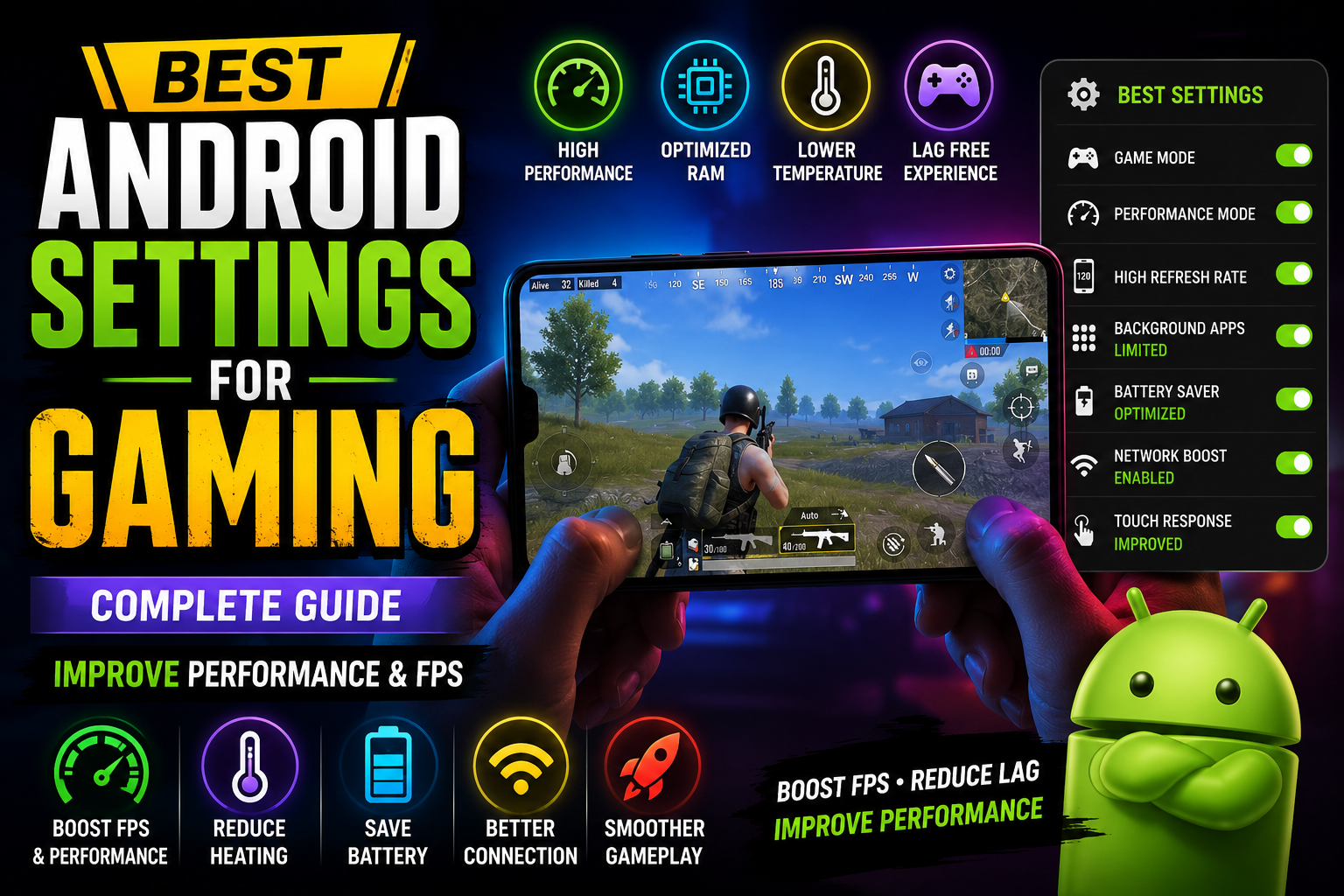
Why Gaming Performance Matters
Gaming performance directly affects gameplay quality. A smooth frame rate and stable performance allow players to react faster, aim better, and enjoy a more immersive gaming experience.
- Smoother gameplay
- Reduced lag and stuttering
- Better touch response
- Improved battery efficiency
- Lower device temperature
1. Enable Game Mode
Most modern Android smartphones include a dedicated Game Mode feature. This mode optimizes system resources and blocks unnecessary notifications during gameplay.
Benefits of Game Mode:
- Improved CPU performance
- Better RAM management
- Notification blocking
- Enhanced gaming stability
2. Free Up RAM Before Gaming
RAM plays an important role in gaming performance. Close unused applications before launching games.
Too many background apps can reduce available memory and cause frame drops.
3. Use Performance Mode
Many smartphones include Performance Mode or High Performance Mode. This setting prioritizes speed and gaming performance over battery life.
It is especially useful for competitive games that require stable frame rates.
4. Update Your Device Software
Manufacturers regularly release software updates containing performance improvements and bug fixes.
Always keep your Android version updated for the best gaming experience.
5. Keep Your Storage Clean
Low storage can negatively affect device performance.
- Delete unused apps
- Remove duplicate files
- Clear downloads folder
- Delete unnecessary videos
Maintaining at least 10-15% free storage is recommended.
6. Lower Background Activity
Background processes consume CPU power and RAM.
Disable unnecessary synchronization services and close applications that are not needed during gaming sessions.
7. Use a Stable Internet Connection
Online games depend heavily on network quality.
For best results:
- Use 5GHz Wi-Fi if available
- Stay close to the router
- Avoid downloads while gaming
- Close streaming applications
8. Enable High Refresh Rate
If your phone supports 90Hz, 120Hz, or higher refresh rates, enable it for smoother gameplay and improved responsiveness.
High refresh rates can make games feel more fluid and responsive.
9. Prevent Overheating
Heat is one of the biggest enemies of gaming performance.
When a device overheats, it may reduce CPU speed automatically to protect hardware.
To prevent overheating:
- Remove thick phone covers while gaming
- Avoid charging while playing
- Play in a cool environment
- Take breaks during long gaming sessions
10. Keep Battery Above 30%
Some devices reduce performance when battery levels become very low.
Maintaining a healthy battery level can help ensure stable gaming performance.
11. Disable Auto Updates
Background app updates can consume bandwidth and system resources while gaming.
Disable automatic updates during gaming sessions.
12. Use Gaming Accessories
Gaming accessories can improve comfort and performance.
- Gaming triggers
- Cooling fans
- Bluetooth controllers
- Gaming earbuds
13. Optimize Graphics Settings
Not every device can handle maximum graphics settings.
Choose settings based on your phone’s hardware capabilities.
- Low-end phones: Low graphics + High FPS
- Mid-range phones: Medium graphics + High FPS
- Flagship phones: High graphics + High FPS
14. Keep Gaming Apps Updated
Game developers frequently release optimization updates that improve stability and performance.
15. Restart Your Phone Regularly
A simple restart clears temporary files and refreshes system resources.
This can often improve overall gaming performance.
Common Mistakes Gamers Make
- Playing while charging
- Using maximum brightness constantly
- Keeping too many apps open
- Ignoring software updates
- Gaming with nearly full storage
Conclusion
Optimizing Android settings can dramatically improve gaming performance without spending money on a new device. By managing RAM, reducing background activity, preventing overheating, and using Game Mode effectively, players can enjoy smoother gameplay and better FPS.
Whether you are a casual gamer or a competitive player, these settings will help you get the best possible gaming experience from your Android smartphone.